Windrose Guide: How to Rename Your Ship
Give your fleet a custom identity in seconds with our step by step Wharf customization guide.
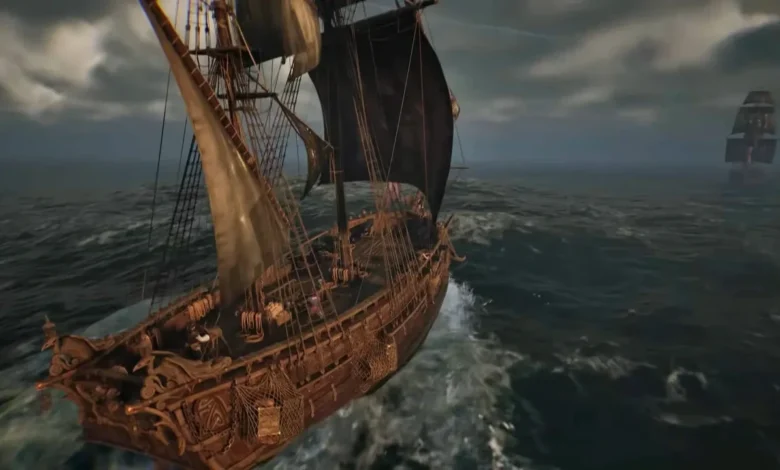
Quick Answer: You can rename your ship for free by interacting with the Wharf at your home base. Open the Manage Ship menu, click the Customization tab, and type your new title into the Name field at the top. There are no limits or currency costs to do this.
Sailing around the Caribbean in a vessel with a default, generic title rarely strikes fear into the hearts of enemy pirates. Thankfully, slapping a custom moniker on your ship takes barely 30 seconds. You can do it as many times as you want, completely free of charge. The entire process is tied to your base’s Wharf structure.
Here is exactly how to unlock the feature and give your fleet the identity it deserves.
Unlocking and Building the Wharf
Before you can fiddle with any ship menus, you need a functioning Wharf. The game introduces this structure naturally through the main story. Once you finish Doctor Galen’s “I Need a Bigger Boat” questline, you will unlock the tutorial quest titled “How My Sea Adventure Began.” Progressing through this hands you the Wharf.
If you are already past the tutorial and somehow lost your Wharf, or you just want to relocate it, you can construct one manually. Open your Building Panel, head over to the Crafting and Utilities section, and drop the blueprint right on the shoreline.
Building it from scratch is incredibly cheap:
| Material | Quantity |
| Wood | 10 |
| Coarse Fabric | 10 |
How to Rename Your Ship Step-by-Step
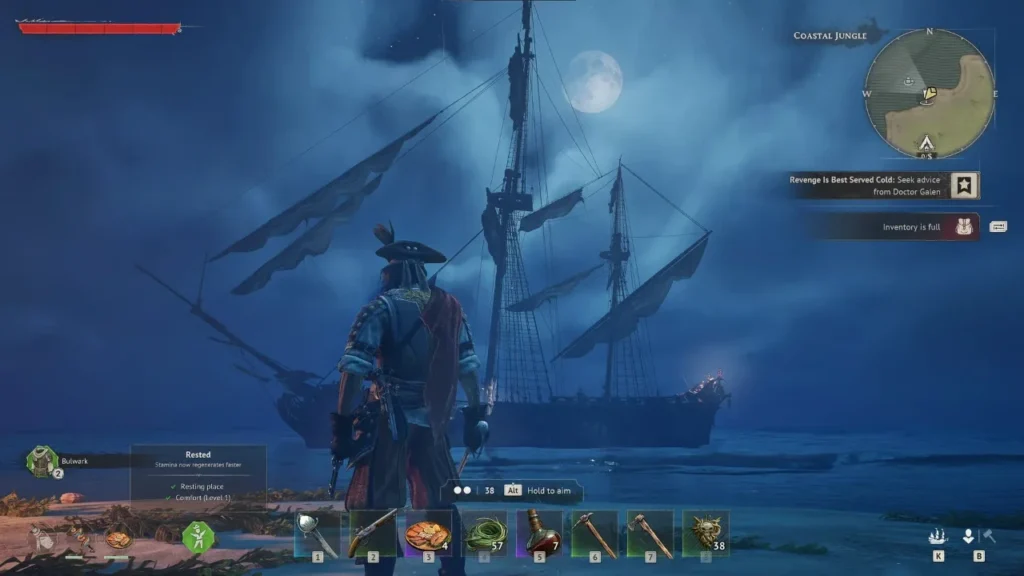
Once your Wharf is operational, the actual renaming process is a breeze. Having a cool name painted on your hull is fantastic, but remember that a name alone won’t sink an enemy galleon. Make sure your newly christened vessel is actually a threat by checking out our Windrose Guide: Best Cannons & How to Get Them.
When you are ready to rebrand your ship, follow these exact steps:
- Walk up to the Wharf at your base and press the interact button.
- Navigate to the Ship Selection tab and pick the vessel you want to edit.
- Click the Manage Ship option located in the bottom right corner of the window.
- Swap over to the Customization tab, which sits just to the left of your Cargo and Gear menus.
- Locate the Name field at the very top of your screen, delete the default text, and type in your custom name.
- Hit confirm to save your changes.
Pro Tip: If you interact with the Wharf and your ship is nowhere to be seen, look for the recall prompt. Pressing it will instantly teleport your boat straight to the dock so you can manage it without swimming out to sea.
What Else Does the Customization Tab Do?
The Customization screen is your one-stop shop for making your ship look exactly how you want. Renaming is just the start. You can also tweak several visual elements:
- Sails and sail colors
- Flags and emblems
- General hull appearance
Keep in mind that everything in this specific tab is purely cosmetic. Painting your sails black will not make your ship sail faster. If you want to equip functional upgrades like Hull Bracing or Boarding Party Gear, you need to leave the Customization menu and open the dedicated gear tabs on the Manage Ship screen.
Ready to fully deck out your base and dominate the seas? For more strategies, weapon tier lists, and progression tips, check out our full collection of guides right here.