Forza Horizon 6 Guide: How to Capture and Download Pristine Wallpapers
Transform your raw in-game screenshots into professional automotive photography with our complete guide to camera settings and web exports.
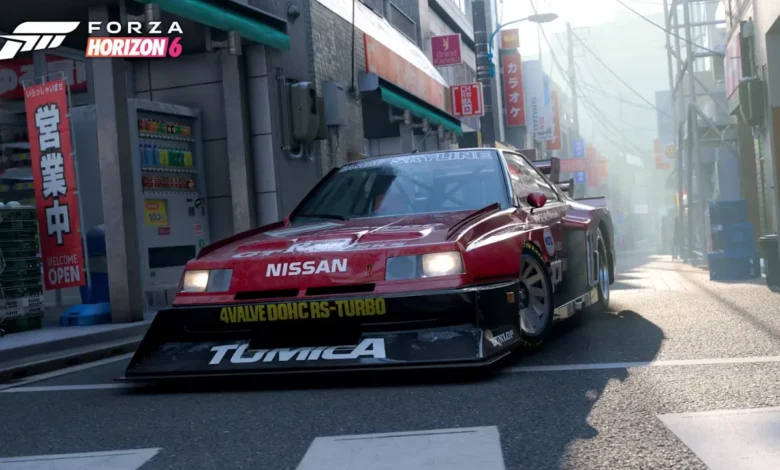
Quick Answer: If you want to export high-resolution, HUD-free screenshots to your phone or computer, you must explicitly choose to “Save and Share” your photo in the game menu. After uploading, log into forza.net/myforza to download your files directly. For the most realistic lighting, always keep your in-game brightness at or below 50.
Japan looks absolutely stunning in the latest Horizon festival, serving up incredible scenery from the neon sprawl of Tokyo to the serene shadows of Mt. Fuji. Naturally, you are going to want to take some pictures.
The problem is that the backend system for actually getting those photos off your gaming machine and onto your desktop is surprisingly archaic. If you just tap the shutter button and back out, your masterpiece vanishes into local storage purgatory forever. Before you burn an hour staging the perfect mountain drift just to lose the file, here is exactly how to frame, expose, and safely export your virtual photography.
Firing Up the Camera Across Japan
You are not restricted to just pulling over on the side of the highway to take a picture. The game offers several different ways to deploy a camera depending on the exact vibe you want to capture.
The Core Lenses
If you are out exploring the open world, accessing your camera rig is instant. Just press Up on your controller’s D-pad, or hit the P key if you are driving with a mouse and keyboard. Not only does taking pictures of cars earn you valuable Horizon Festival points, but snapping famous landmarks like Shibuya Crossing directly feeds your Discover Japan progression.
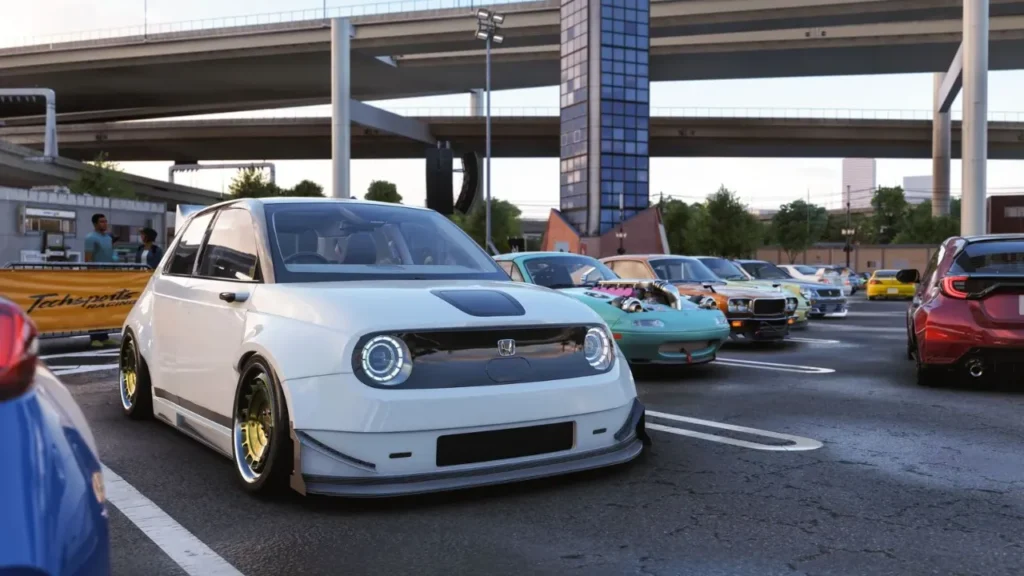
If you are looking to coordinate a massive multi-car shoot, head to an official Meetup spot or a designated parking zone. These areas let you walk around real player vehicles on foot and trigger the photo mode for any car parked in the lot.
Studio Lighting and Drone Flybys
For a cleaner, more professional look without the distracting background scenery, head to any player house you own. Jump into the Customizable Garage tab and select View Garage to access a dedicated interior studio space with pristine lighting.
If you want a sweeping aerial shot of a canyon road without your vehicle blocking the frame, deploy your drone through the ANNA menu. While the drone lacks the deep exposure settings of the dedicated photo mode, it has a simple button prompt to completely hide the UI. You can just screenshot the raw gameplay feed for beautiful bird’s-eye views.
Dialing in Realistic Photo Settings
You cannot just crank the saturation to the maximum and expect a realistic result. The new rendering technology rewards a cinematic, restrained approach. Realistic car photography usually looks slightly darker and features less aggressive contrast than your typical overly filtered social media post.
Before tweaking anything else, lock in your Exposure and Brightness sliders first.
| Camera Parameter | Target Range | How It Impacts the Shot |
| Exposure | At or above 50 | Dictates the overall light intake. Night scenes and dark paint jobs require pushing this significantly higher. |
| Brightness | At or below 50 | Pushing this past 50 immediately washes out the contrast and makes your car reflections look fake. |
Always pay attention to the weather. Cloudy skies, sunrises, and sunsets provide naturally diffused lighting that makes virtual paint jobs look incredibly lifelike.
While you are snapping photos of your multi-million credit garage, make sure your game isn’t crashing behind the scenes. If you are struggling with menu crashes, check out our Forza Horizon 6 guide on how to fix the E:0-17 save error to keep your profile secure.
The Exact Export and Download Workflow
This is the exact spot where everyone messes up. Taking the picture does not automatically put a jpeg on your hard drive.
The Critical Saving Sequence
When you are happy with the framing, hit the button to capture the image. Before you back out of the menu, you must select the option to Save and Share. If you only select “Save,” the file gets buried in your local game data and you will never see it on the official website.
Always type out a unique custom file name. The web portal sorts everything by the title you provide, so leaving the auto-generated names makes finding a specific photo a total nightmare later on.
Retrieving Files From The Web
Once you successfully share the image, the servers strip away all the UI text and export a perfectly clean image matching your gameplay resolution. Playing in 4K means you get a genuine 4K wallpaper.
- Open a web browser on your phone or PC and go to forza.net/myforza.
- Log into the portal using the exact Microsoft account tied to your game profile.
- Scroll through your personal gallery, click on the desired photo, and hit the download button to save the full-resolution file.
Bypassing the Web Portal on PC
If you are playing on a computer, you have a few easy shortcuts to skip the website entirely.
If you bought the game through Steam, the standard Steam screenshot hotkey works perfectly. If you are playing via the Xbox App, you can pull up the Xbox Game Bar to capture your screen at any moment.
Just remember that these are raw screen captures. They will grab whatever is currently on your monitor, meaning your speedometer and minimap will be in the shot unless you are actively hiding the UI inside the official Photo Mode. Xbox Series X and Series S players do not have access to these specific overlays, so the official web gallery remains the only reliable way for console players to extract clean wallpapers.