Directive 8020 Guide: Best PC Settings for Maximum Performance
Balance breathtaking visual fidelity with a rock-solid frame rate in Supermassive's new Unreal Engine 5 nightmare.
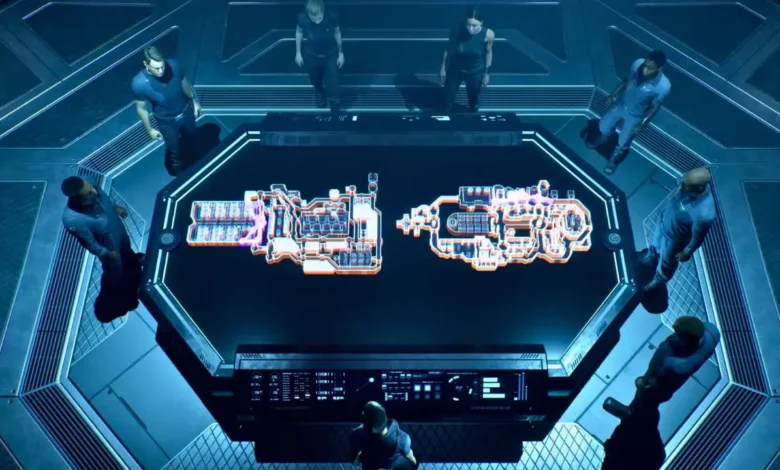
Quick Answer: For a smooth 60 FPS experience in Directive 8020, you should lean heavily on upscalers like DLSS or FSR set to the “Balanced” preset. Keep Global Illumination and Shadows at Medium, and definitely turn off Path Tracing and Ray Reconstruction unless you are running a top-tier RTX 50-series card. Setting Reflections to Low is the secret to avoiding massive frame drops in the ship’s metallic corridors.
Unreal Engine 5 in Deep Space
Supermassive Games has officially traded the campfire stories of previous Dark Pictures entries for a full-blown Unreal Engine 5 powerhouse. Directive 8020 is easily the most visually ambitious game they have ever made, but that beauty comes at a high cost for your hardware. Between the dense atmospheric fog and the heavy reliance on Lumen lighting, even high-end rigs can start to sweat once you step foot on Tau Ceti f.
If you are experiencing stutters or blurry textures, it is likely because the game’s default presets are pushing UE5 features that your GPU isn’t quite ready for. To get the best out of this sci-fi nightmare, you need to balance the “wow” factor with actual playability.
While you are tweaking your graphics to survive the technical side of the game, make sure you are making the right moves in the story as well. Before you get too deep into the mission, read our guide on whether you should consult and reboot Oracle to ensure your crew survives the first act.
Optimized Graphics Settings
The following settings are designed to keep your frame rate stable during intense action sequences without making the game look like a muddy mess.
| Setting | Recommended Value | Why it matters |
| Screen Mode | Borderless | Offers the best stability for Alt-Tabbing without losing performance. |
| Upscaler | DLSS (Nvidia) / FSR (AMD) | Essential for UE5. Use this instead of lowering your native resolution. |
| Super Resolution | Balanced | The best middle ground for performance and image clarity. |
| Frame Generation | On (RTX 40 series only) | Provides a massive FPS boost if your hardware supports it. |
| Shadow Quality | Medium | High shadows eat frames for very little visual gain over Medium. |
| Global Illumination | Medium | One of the most taxing settings; Medium keeps the lighting moody but fast. |
| Reflection Quality | Low | Low uses standard SSR. Medium and High switch to Lumen, which can tank FPS. |
| Texture Quality | VRAM Dependent | Set to High for 10GB+, Medium for 8GB, and Low for 6GB cards. |
| Effects Quality | High | Doesn’t impact FPS much but makes explosions look significantly better. |
Demystifying the Heavy Hitters
There are a few “trap” settings in Directive 8020 that will kill your performance regardless of how powerful your PC is.
- Path Tracing: This is the ultimate “photo mode” setting. It effectively replaces the standard lighting with a full simulation. Unless you have an RTX 5080 or 5090, keep this turned off, as it can slash your frame rate by 60% or more.
- Ray Reconstruction: While this helps clean up ray-traced reflections, the performance hit is significant. If you aren’t using Ray Tracing, this setting should stay off.
- Motion Blur and Film Grain: These are purely aesthetic choices. Most players prefer Film Grain at 0% to keep the image sharp, while Motion Blur is a “love it or hate it” setting that can help hide lower frame rates at the cost of clarity.
Real-World Performance Expectations
During testing on a high-end setup (i9-14900HX and an RTX 4080), these optimized settings delivered a solid 75 to 80 FPS during general exploration. When things got hectic and the screen was filled with particle effects and action, the frame rate stayed comfortably in the 65 to 70 range.
If you are playing on mid-range hardware, like an RTX 3060 or an RX 6700, stick to the “Balanced” upscaler setting and don’t be afraid to drop Global Illumination to Low if you encounter stuttering in the larger colony areas. Unreal Engine 5 is a beast, but with a little bit of fine-tuning, you can get a cinematic experience that actually plays as good as it looks.
For more deep dives, hidden secrets, and full walkthroughs visit our other Guides here.