Subnautica 2 Guide: Best Graphics Settings for Max FPS and No Lag
Stop the Stutter: The Ultimate Optimization Guide for Subnautica 2 PC Performance
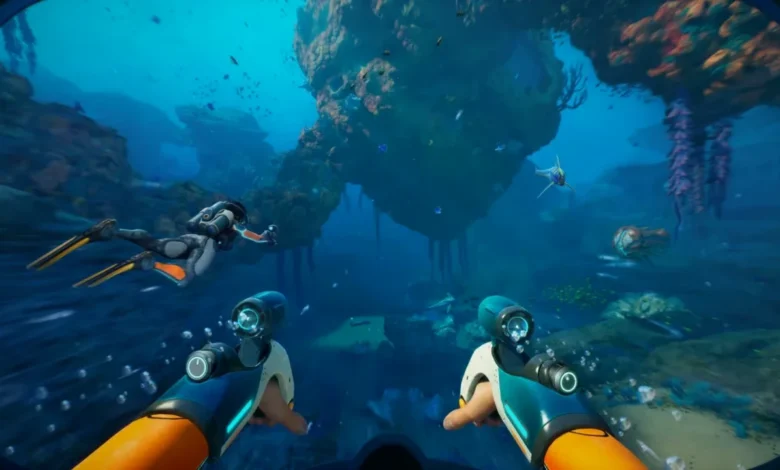
Quick Answer: The biggest secret to eliminating stutter in the current Early Access build is applying a hard 60 FPS limit. Beyond that, dropping Global Illumination and Clouds to Low, matching your texture settings to your VRAM, and utilizing DLSS or FSR will give you a massive performance boost without ruining the underwater atmosphere.
Diving into the alien oceans of Zazura is a breathtaking experience, right up until your frame rate tanks and a massive Leviathan eats you because your screen froze. Subnautica 2 brings overhauled lighting, insanely dense marine environments, and heavy particle effects that can easily bring mid-range rigs to their knees.
Fortunately, the game is highly scalable. You don’t need a supercomputer to explore safely. With a few targeted tweaks in the options menu, you can iron out the stuttering and get back to swimming.
Know Your Hardware Limits
Before you start messing with sliders, you need to know exactly what your PC is capable of handling. Unknown Worlds has provided four distinct hardware tiers for the Early Access launch.
| Target Performance | Recommended GPU | Recommended CPU | System RAM | Required VRAM |
| 1080p / 30 FPS (Low) | GTX 1660 or RX 5500 XT | i5-8400 or Ryzen 5 2600 | 12 GB | 6 GB |
| 1440p / 60 FPS (Medium) | RTX 3070 or RX 6700 XT | i7-13700 or Ryzen 7 7700X | 16 GB | 8 GB |
| 1440p / 60 FPS (High) | RTX 4070 or RX 6900 XT | i7-13700 or Ryzen 7 7700X | 32 GB | 12 GB |
| 4K / 60 FPS (Ultra++) | RTX 5070 Ti or RX 7900 XTX | i9-14900 or Ryzen 9 7900X3D | 32 GB | 16 GB |
A brutal truth regarding the current build: if your graphics card has less than 6 GB of VRAM, you are going to have a bad time. No amount of tweaking will make the game run smoothly below that floor. Also, while the game asks for 50 GB of storage, keep a buffer. Early Access games drop massive patches, and a full SSD will choke your system’s performance.
The Best Settings for Low-End PCs
If you are rocking an older card like a GTX 1660, RTX 2060, or RX 5600 XT, your goal is a stable 1080p at 30 to 60 FPS.
- Window Mode: Fullscreen
- Frame Rate Limit: 60 (Drop to 30 if you still experience heavy stuttering)
- VSync: Off (Only turn this on if you lack a FreeSync or G-Sync monitor)
- Motion / Underwater Blur: Off
- Upscaling: DLSS (Nvidia) or FSR (AMD) set to Performance
- Frame Generation: On
- All Other Graphics Settings: Low
Frame Generation is a lifesaver here, granting a massive FPS injection. However, it can make the image look a bit soft. If you find the visual hit too annoying, try turning it off and dropping your frame cap to 30 instead.
The Best Settings for Mid-Range PCs
If you have an RTX 3060, 3070, or AMD equivalent, you should be targeting 1440p at 60 FPS on the Medium preset. This is the sweet spot for visual fidelity and performance.
- Resolution: 2560×1440
- Frame Rate Limit: 60
- Upscaling: DLSS or TSR set to Balanced
- View Distance: High
- Effects & Clouds: Low
- All Other Settings: Medium
Why keep View Distance on High? Subnautica 2 relies heavily on long draw distances to build its terrifying atmosphere. Dropping this to Low makes the ocean feel empty.
If you are finally getting smooth frames but are still struggling to navigate the game’s actual mechanics, like dealing with broken Lifepod equipment, take a quick detour and read our Subnautica 2 Guide: How to Fix the “Requires Fully Functional Fabricator” Error so you can get back to building your empire.
The Best Settings for High-End and 4K PCs
For the lucky few running an RTX 4070 or better with 12 GB+ of VRAM, you can push the game to High settings at 1440p or 4K.
- Graphics Preset: High
- Frame Rate Limit: 60
- Upscaling: DLSS or FSR set to Quality
- Frame Generation: Auto
Leaving Frame Generation on “Auto” is a smart move for high-end rigs. The game will only trigger it during highly demanding scenarios, preserving your native image quality during peaceful exploration.
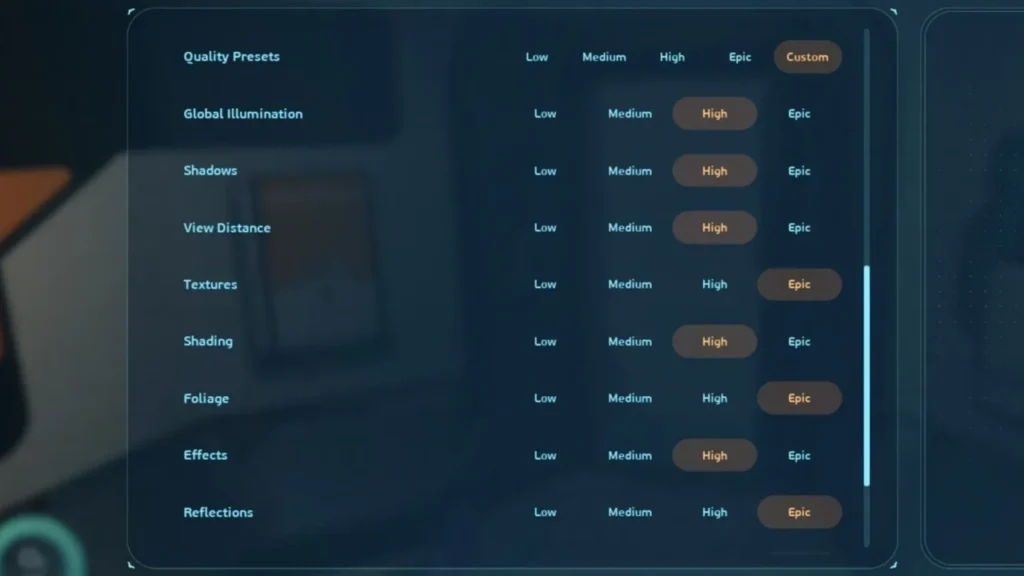
The Biggest FPS Killers to Avoid
Not all settings are created equal. If you are desperate for a few extra frames, target these greedy options first:
- Uncapped Frame Rates: Do not let your frame rate run wild. Extensive testing shows that running an uncapped frame rate in the current build causes severe micro-stutters. Lock it at 60 FPS.
- Global Illumination: This lighting tech looks gorgeous but eats GPUs for breakfast. Drop it from High to Medium immediately if you feel lag.
- Clouds: You are underwater 90% of the time. You do not need high-definition clouds. Set this to Low.
- Shadows: The difference between High and Low shadows is visually noticeable, but the performance cost is massive. Keep it at Medium or lower unless you have a top-tier card.
- Textures vs VRAM: Pushing texture quality beyond what your VRAM can physically hold will result in a stuttering nightmare. Obey the VRAM limits listed in the hardware table above.
A Note on Upscalers
Picking the right upscaling tech makes a huge difference. If you have an Nvidia RTX card, stick exclusively to DLSS. If you are on an AMD card, FSR or TSR are your go-to options. For those still surviving on older GTX cards (which don’t support DLSS), AMD’s FSR will still work for you and provide a much-needed boost.
Remember, this is Early Access. Optimization patches are guaranteed to arrive in the coming months. Treat these settings as your starting line, and keep an eye out for game updates that might smooth things out even further.