Forza Horizon 6 Guide: The Best PC Optimization Settings for High-Speed Performance
Maximize your frame rate and avoid memory leaks with our complete PC performance breakdown for Forza Horizon 6.
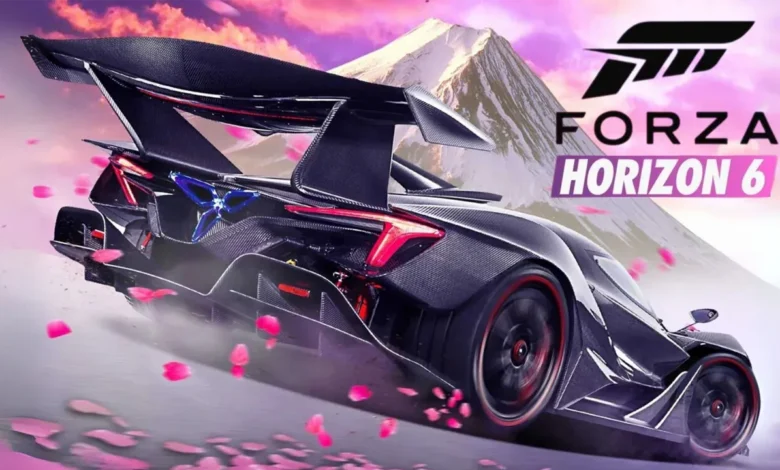
Quick Answer: Do not blindly crank every slider to Ultra. To avoid game-breaking memory leaks and maintain a smooth frame rate, keep your Car Level of Detail on Ultra but drop Environment Textures and Geometry to High. Turn off standard TAA in favor of Native AA alternatives to keep the image sharp at high speeds.
Getting Forza Horizon 6 to run flawlessly on PC is a bit of a balancing act. The upgraded ForzaTech engine scales surprisingly well, meaning you can play it on a beefy desktop rig or a handheld like the Steam Deck but it comes with a few nasty technical traps.
If you just slide everything to maximum at a 4K resolution, you are going to turn your computer into an expensive space heater and watch your frame rate tank. I spent hours tweaking individual sliders on a dedicated test rig equipped with an RTX 5070 to figure out exactly what works, what breaks the game, and where you can reclaim processing power without making your cars look like plastic toys.
The Reality of Hardware Testing and VRAM Bugs
Before you waste an entire evening restarting the application and squinting at pixels, you need to understand how this game handles system resources. The developers packed in gorgeous ray tracing and modern upscaling, but they also left behind a brutal memory leak.
If you push the environment geometry and texture options to their absolute limits, your performance will slowly degrade the longer you play. Even worse, if you exceed your graphics card’s physical VRAM limit, like trying to force 4K textures through a 12GB card, the engine panics and disables upscaling features like DLSS completely without warning you.
During my testing targeting 60 frames per second at native 4K, the standard High preset looked terribly flat. Bumping it to Ultra completely destroyed the frame rate, dragging it down into the low 40s. You have to manually intervene.
The Master Graphics Configuration Directory
To save you the headache, I have isolated the settings that actually make your cars look pristine from the ones that just needlessly drain your graphics card. Use the table below as your baseline configuration.
| Graphics Setting | Desktop PC Target | Handheld Target |
| Car Level of Detail | Ultra | High |
| Environment Texture Quality | High | High |
| Environment Geometry Quality | High | High |
| Car Reflection Quality | High | High |
| Screen Space Reflections | Off | Off or Medium |
| Ray Traced Reflections Quality | Medium | Off |
| Shadow Quality | High | Low |
| Night Shadows | Ultra | Off |
| Screen Space Global Illumination | Off | Medium |
| Ray Traced Global Illumination | Low | Off |
| Shader Quality | Ultra | High |
| Deformable Terrain Quality | Extreme | Medium |
| Particle Effects Quality | High | Medium |
| Volumetric Fog Quality | Ultra | Medium |
Breaking Down the Heaviest Visual Toggles
Understanding what these sliders actually do behind the scenes makes it much easier to tweak things when your frame rate dips during a chaotic street race.
Car and Environment Details
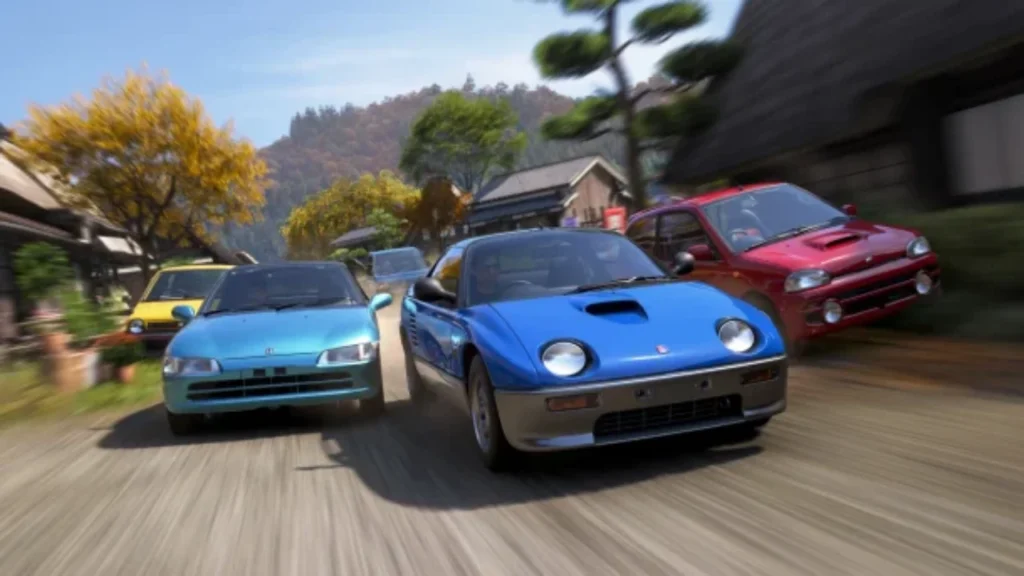
Since this is a racing game, making the cars look flawless should be your top priority. Keep your Car Level of Detail on Ultra. I heavily recommend dropping other settings before you ever touch this one.
Environment Texture and Geometry Quality dictate the detail of the surrounding world. You absolutely must drop these to High if your graphics card only has 8GB to 12GB of VRAM. Doing this completely bypasses the built-in memory leak. Since you will be speeding past the scenery anyway, you won’t even notice the drop in quality.
While you are out exploring the map with your newly optimized frame rate, check out our Forza Horizon 6 guide on finding all collectible locations for Mascots and Bonus Boards to clear the map without any visual stuttering slowing you down.
Ray Tracing and Reflections
Ray Traced Reflections look incredible, but they come with a massive catch. If you leave this setting on Medium, white or brightly colored cars suffer from terrible visual noise and speckling. If that artifacting drives you crazy, just turn Ray Tracing off completely and bump Screen Space Reflections up to High for a cleaner look.
For lighting, Ray Traced Global Illumination adds incredible atmosphere even on its lowest setting. Just be warned that it adds a bit of noise to forest foliage. The game smartly disables Screen Space GI the second you turn on the ray-traced version, so you aren’t paying a double performance tax.
Terrain and Particle Effects
Deformable Terrain Quality changes how satisfying it looks to rip through mud and snow. On a standard desktop PC, this barely touches your performance, so pin it to Extreme. However, it will absolutely destroy a handheld APU. If you are playing on a Steam Deck or ROG Ally X, drop it to Medium.
Particle Effects Quality handles your tire smoke and dirt spray. Leaving it on High gives you that cinematic flair when drifting through a hairpin without causing massive frame drops when multiple cars are kicking up dust.
Perfecting the Video and Anti-Aliasing Menu
Your basic video tab is where you dial in the final touches.
- Turn Vertical Synchronization off completely to unlock your frame rate.
- For upscaling, use DLSS, FSR, or XeSS. I recommend Quality mode for 1080p monitors, Balanced mode for 1440p monitors, and Performance mode if you are chasing native 4K.
- Note that multi-frame generation is currently locked to Nvidia hardware only.
If your rig is a monster and you don’t need upscaling to hit your target frame rate, do not use the standard TAA setting. It makes the game look far too blurry when you are moving fast. Instead, switch to DLAA, FSR Native AA, or XeSS Native AA. This keeps the edges of your vehicle razor-sharp even when you are screaming down the Japanese highways at 200 miles per hour.